Home NAS Server
Created: February 12, 2026
Background
Back when I was in school I decided that I wanted a server to store all of my coursework that I could access remotely from campus. This led me down a rabbit hole. Since I was a student I didn’t want to spend a bunch of money on this build. After reading some forum posts I ended up purchasing some old server hardware off of eBay along with an inexpensive case and a hard drive (HDD) off of Amazon.
The hardware I ended up with was a Supermicro X8DTL motherboard with dual Intel Xeon L5640 CPUs running at 2.27 GHz, 6GB of DDR3 ECC RAM, a spare NVIDIA GeForce GTX 745 GPU, an Antec PC case, and a 1TB Western Digital (WD) Blue (yes, no boot OS). I was bright-eyed and bushy-tailed building this machine. Everything I read online suggested using Linux as the OS for a server. I bounced around looking into different distros before I decided on Linux Mint, since it was supposed to be similar to Windows.
Eventually I was able to get this machine up and running with SFTP, Samba, SSH, etc. This machine ended up storing all of my schoolwork over the next few years while also acting as my personal Linux development machine. I even purchased another WD 1TB Blue HDD to create a data mirror. I installed the drive but never did anything with it.
Eventually this machine was powered down and collected dust for a while as I did not have a need for a file server. However, I recently decided it would be a good idea to give it a face-lift.
Hardware Upgrade?
I’ve toyed with the idea for a while now to purchase a small server rack to store a development server and a file server in. Unfortunately, I have a hard time opening my wallet for projects like this, especially when I still have working hardware (even with its age). So, I knocked the dust off of my old machine and turned it back on.
I started looking through some of the old files as well as some of the old computer backups that were stored on it. I realized that a lot of the documents, images, and videos only exist on a single drive. So, I decided it was officially time to start over mostly fresh. The motherboard and CPUs are old, but they still get the job done. Instead of replacing the whole system I decided that I would just update the OS and properly mirror the drives.
Requirements
My requirements for a home server have not changed that much since my school days. I just want a simple NAS at this point. I use many different machines at home so it would be nice to have a centralized place to store my files.
I don’t store that much data so I don’t need a ton of storage. In fact, only about 500GB of data was stored on the WD 1TB drives. Most of this data came from a failing SSD that I backed up. Otherwise, I do not store as many files as I used to.
Next, I needed to figure out what operating system (OS) and file system I wanted to use to store the data. I don’t usually buy into the hype of things, such as Unraid or FreeNAS. I’m sure those are great choices, but I would prefer going with something I am familiar with, like Ubuntu Server.
Someone mentioned that I should look into ZFS, and it looked straightforward enough to set up. I debated if I wanted a more complex system with parities and striping. I read opinions on ZFS Mirrors versus their RAIDZ options, which swayed me to go with a simple mirror.
My last decision was really how much storage I needed. My choices pretty much boiled down to 4TB or 8TB drives. I’m not sure if I will ever fill up 4TB of storage, so that’s what I went with. I figured if I needed more storage down the line then I would just upgrade the system (even if it would take forever to transfer that data).
Time to Rebuild
I ran to my local PC store and picked up two 4TB WD Red Plus HDDs and a cheap 256GB 2.5" SSD. Next, I created a live USB image of Ubuntu Server 24.04. From here I took out the old drives, installed the SSD and OS, then connected the new HDDs.
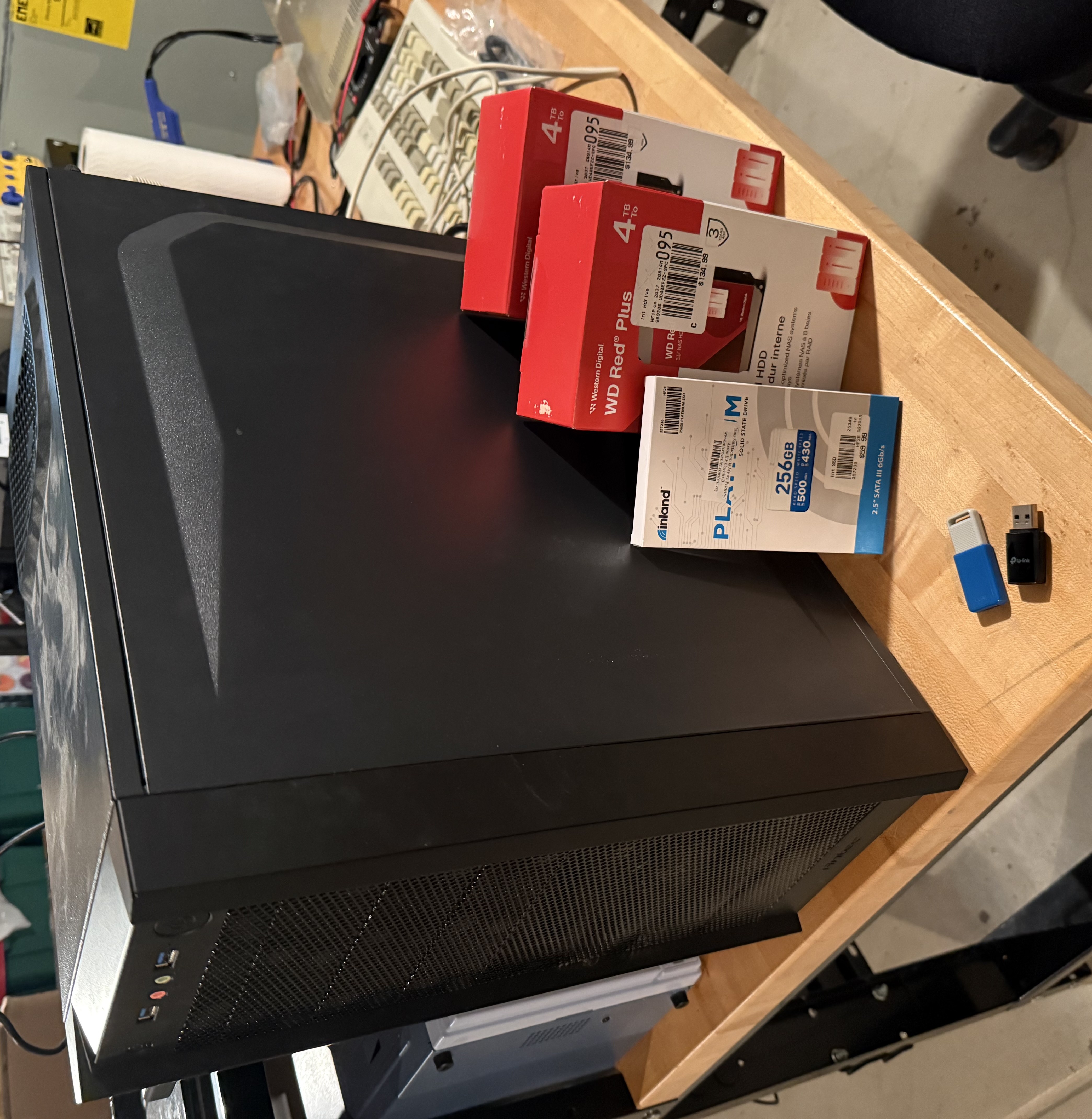
I had no prior experience with ZFS, so I did not know what to expect. I followed Ubuntu’s, Setup a ZFS pool tutorial, which was straightforward. The gist of it was the following:
# Install ZFS
sudo apt install zfsutils-linux

# Creating a Pool
sudo zpool create data-pool mirror /dev/sdb /dev/sdc

# Checking Pool Status
sudo zpool status
From here I created a few datasets within the pool including a /share drive for Samba. Adding datasets is also simple and requires the following command. This is the most basic example, but there appears to be additional features like compression properties.
# Creating ZFS Dataset
zfs create data-pool/share
The only real “quirk” that I discovered with ZFS is that the datasets default to root:root owner and group permissions. It’s no big deal to change that, but I’m not sure what the typical best practices are.
The only thing left to do was install Samba. In my research I discovered that ZFS has some native support for Samba, but I opted to configure the share manually. I also followed Ubuntu’s Install and Configure Samba tutorial.
If you want to be able to write to the Samba share with iOS devices then you will need to tack on vfs objects = catia fruit streams_xattr in the /etc/samba/smb.conf file from this forum post.
Conclusions and Future Work
I finally have a working NAS machine again that I can start storing my files onto. In the future I might transition this machine to new hardware, but for now it will remain as is. I’m pondering with the idea of migrating the machine over to a server rack case, but for now it is okay. I have other projects I need to work on before that moves up on the list.